

Authentication
New Blink credentials are created from a Blink App Identity.Create a Blink App Identity
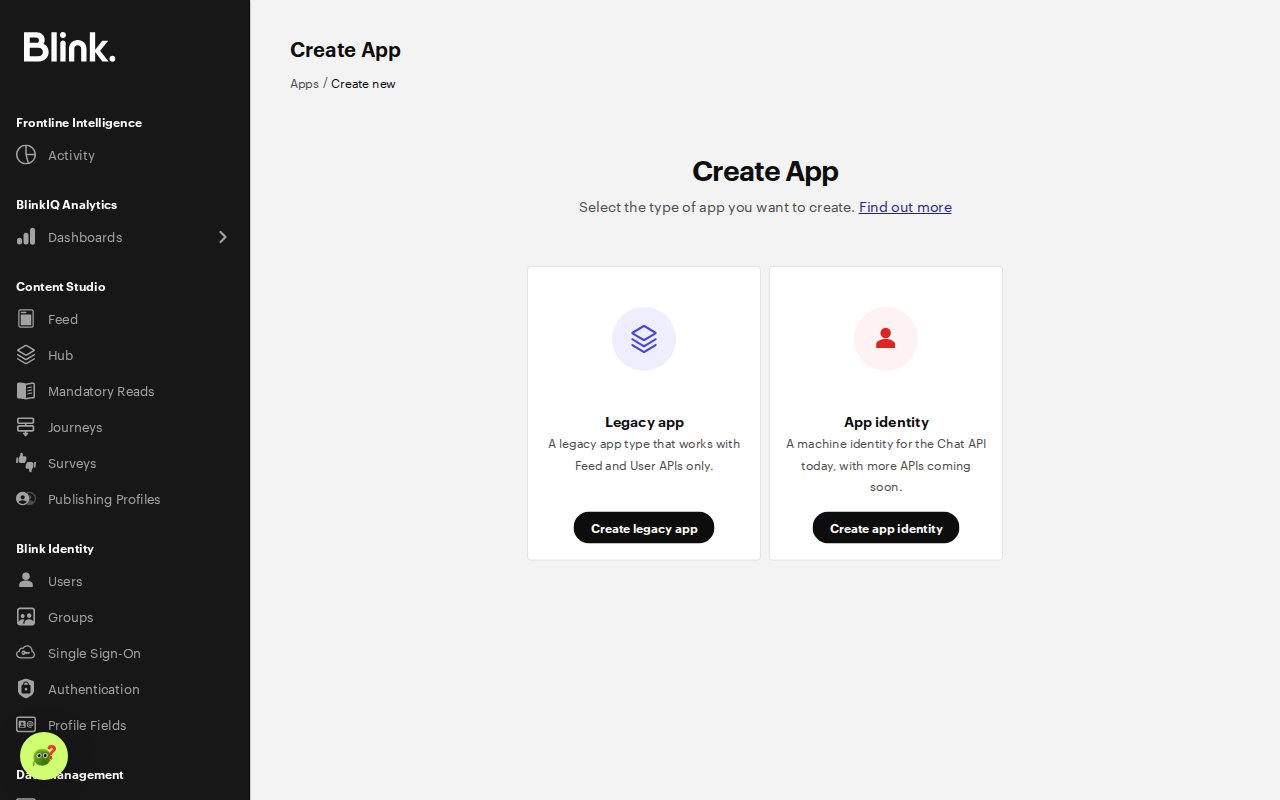
- In your Blink Admin portal, go to Manage Apps, open the Created apps tab and click Create app.
- Choose App identity.
- Give it a name and a tagline. Employees will see them in their chat with your typebot. You can leave the webhook URL and events empty.
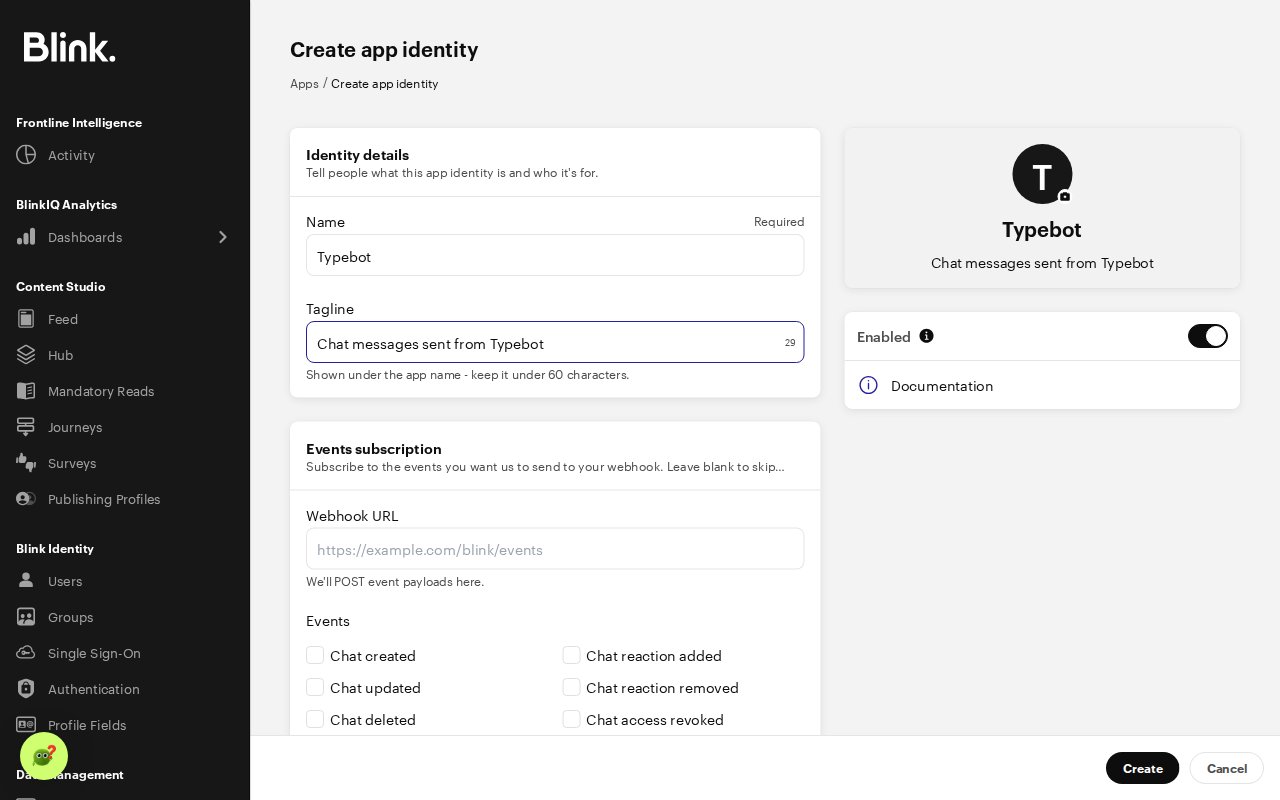
- Click Create, then copy the Client ID and Client Secret. Blink only shows the client secret once. If you lose it, you can regenerate it from the same page.
- In your typebot, open a Blink block, click Add Blink app and paste the client ID and client secret.
Legacy app tokens
Credentials created before App Identities were available use a Blink legacy app token. They keep working with the Get Users and Send Feed Event actions. The Send Chat Message action needs App Identity credentials. Blink App Identities don’t support the Feed and Users APIs yet. If you need to send chat messages and also use Get Users or Send Feed Event, keep your legacy app credentials for those actions.Get Users
The “Get Users” action allows you to retrieve user information from your Blink workspace. You can filter users by either User ID or Employee ID. Without a filter, it retrieves every user of your organisation. This action requires legacy app credentials.Configuration
- Filter: Choose between filtering by “User ID” or “Employee ID”. Don’t select a filter to retrieve every user.
- Save in variables: Select which user data fields to save in your typebot variables
Available User Data
The block can retrieve the following user information:- Email addresses
- Company names
- First and last names
- Display names
- Initials
- Job titles
- Profile photo IDs
- Timezones
- Manager IDs
- Department names
- Account statuses
- User IDs
- Employee IDs
Send Feed Event
The “Send Feed Event” action allows you to create rich, interactive cards in your Blink feed. These cards support various content types and interactive elements. This action requires legacy app credentials.Basic Configuration
- Category ID: The Blink category where the event should be posted
- Ribbon Color: Hex color code for the card’s ribbon (e.g., #FF0000)
- Allow Comments: Enable/disable commenting on the feed event
- Allow Reactions: Enable/disable reactions on the feed event
Card Content Types
The Blink integration supports a rich variety of content types for your feed cards. For comprehensive UI options and examples, refer to the official Blink CardKit documentation.Targeting
- User IDs: Specific users who should see this feed event
- Group IDs: Specific groups who should see this feed event
Push Notifications
Optionally configure a push notifications to receive whenever the feed event is posted.Send Chat Message
The “Send Chat Message” action sends a message to each recipient in a direct chat with your App Identity. The message lands in the recipient’s Blink chats, like a message from a colleague.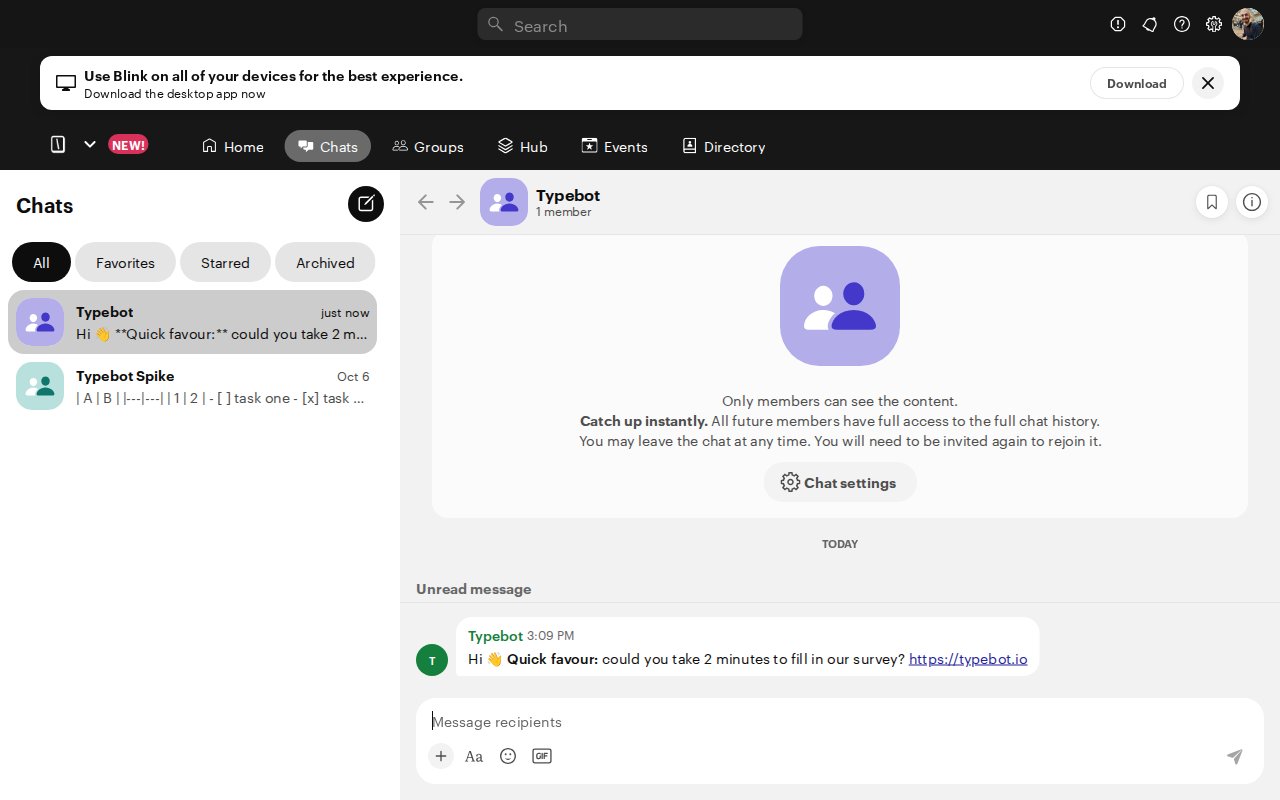
Configuration
- Recipient user IDs: The Blink user IDs (
u-...) of the recipients, separated by commas. You can also insert a list variable, for example the User IDs saved by the Get Users action. - Message: The message to send. Supports Markdown, for example
**bold**and links. - Show link previews: Display a preview of the links in the message.
- Save in variables: Save the number of recipients who received the message, and the user IDs of those who didn’t.
Send a message to every employee
- Add a Blink block with the Get Users action, using your legacy app credentials, without filter. Save the User IDs in a variable.
- Add a Blink block with the Send Chat Message action, using your App Identity credentials, and insert that variable in Recipient user IDs.